If you’ve forgotten your password, follow these steps to reset it:
Step 1: Access the Password Reset Screen
On the login page, click the blue (e-mail reset) link.
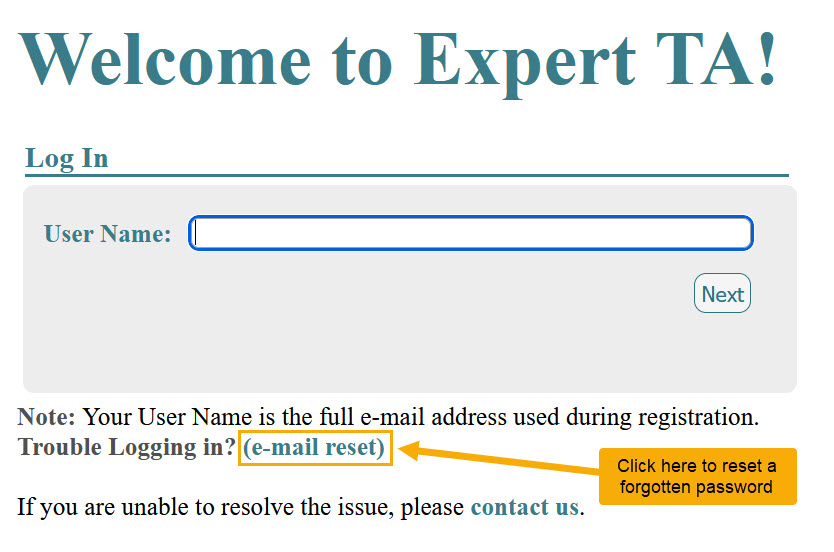
You will be taken to the Request Password Reset screen.
Step 2: Request a Password Reset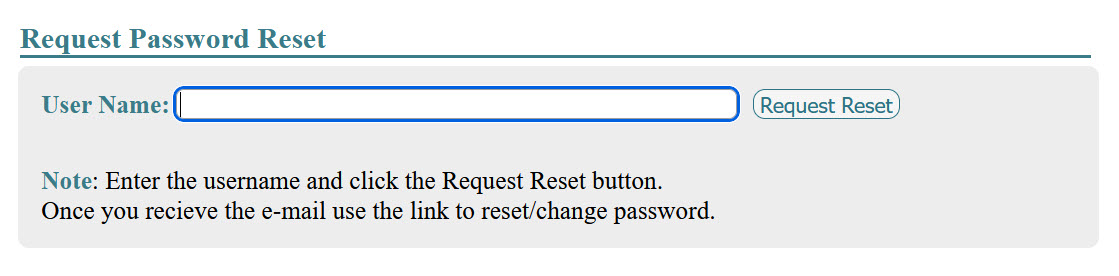
Enter your User Name (your registered email address) in the field provided.
Click Request Reset.
An email will be sent to your registered email address containing a link to reset your password.
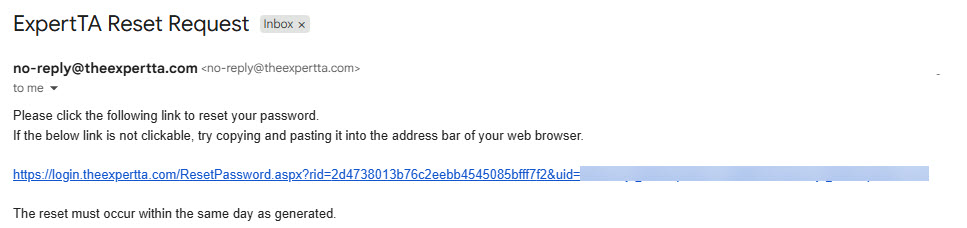
Important:
The password reset link is temporary and expires at 11:59 PM on the day it is requested. Be sure to use it as soon as possible.
If your User Name is not a valid email address or you do not receive the email with the reset link after 15 minutes, please contact support@theexpertta.com for assistance.
Step 3: Reset Your Password
Click the link in the email, or copy and paste it into your browser if it isn’t clickable.
You will be taken to the Reset Password page. Your User Name will already be populated.
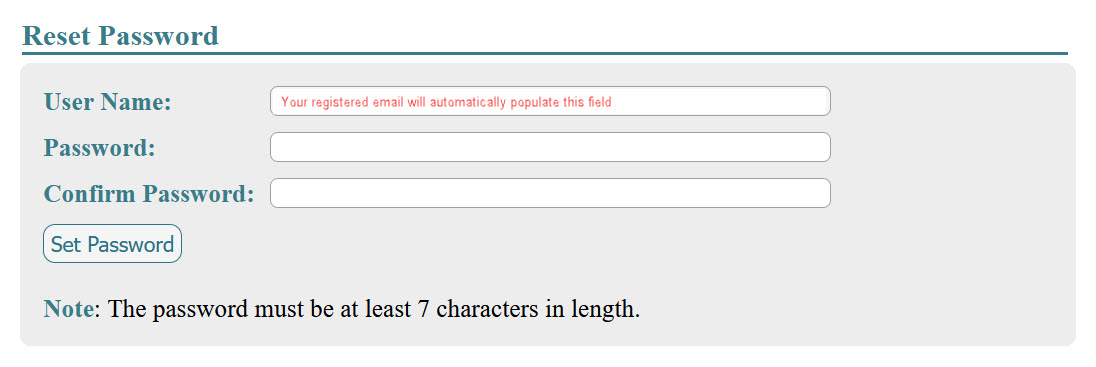
Enter a new password and confirm it in the fields provided.
Click Set Password to complete the process.
Password Requirements:
Your new password must be at least 7 characters long.
Note: Because password characters are not visible when typing, it may be helpful to first carefully decide on your new password and type it slowly in both the “New Password” and “Confirm Password” fields to ensure they match exactly.
To reduce typing errors, you may find it helpful to first rehearse your password before entering it into the system. Be sure to enter it carefully, as characters will not be displayed while typing.
Step 4: Return to the Login Page
Once your password is reset, you can return to the login page and log in using your new password.
Was this article helpful?
That’s Great!
Thank you for your feedback
Sorry! We couldn't be helpful
Thank you for your feedback
Feedback sent
We appreciate your effort and will try to fix the article