The process for registering as a returning user is nearly identical to the New User Registration process.
Important: Do not use links from old courses or from other students. Using an incorrect or outdated URL may result in errors.
Step 1: Locate Your Registration URL
Your instructor will provide a unique registration URL for your class.
Check your syllabus, LMS announcement, or email for this link.
Do not try to guess or modify the URL.
Example of what the URL looks like: https://reg.theexpertta.com/CLASSCODE-XXXXXX-XXX
Note: This is a generic example and cannot be used to register. Your URL will be different and include letters and numbers for your specific class.
Step 2: Open the Registration Page
Copy or Type the registration URL provided by your instructor into your browser.
You will be taken to the Course Registration page.
Step 3: Enter Your Email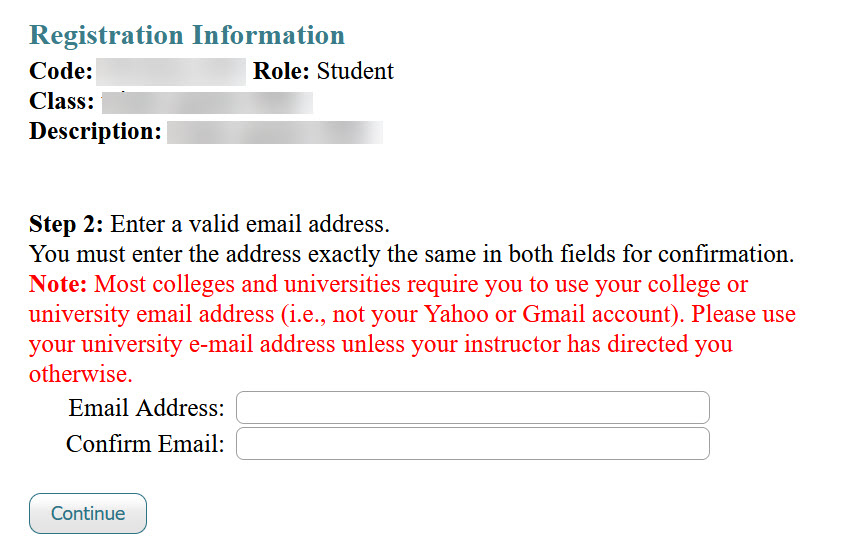
Enter your Email Address in the first field and Confirm Email in the second field.
Use an email address not already registered in Expert TA.
Click Continue to move to the next step.
Step 4: Enter Your Password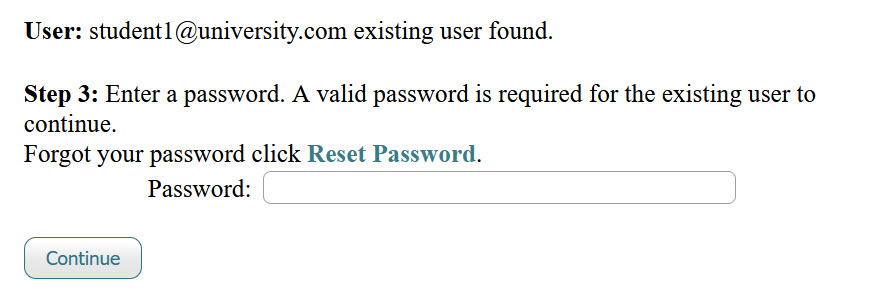
Enter your Password in the field provided.
Click Continue to move to the next step.
If you do not remember your password, you will need to reset it before you can register for your new class. For instructions, see Password Reset (Forgotten Password).
Step 5: Update User Profile and Agree to Terms of Service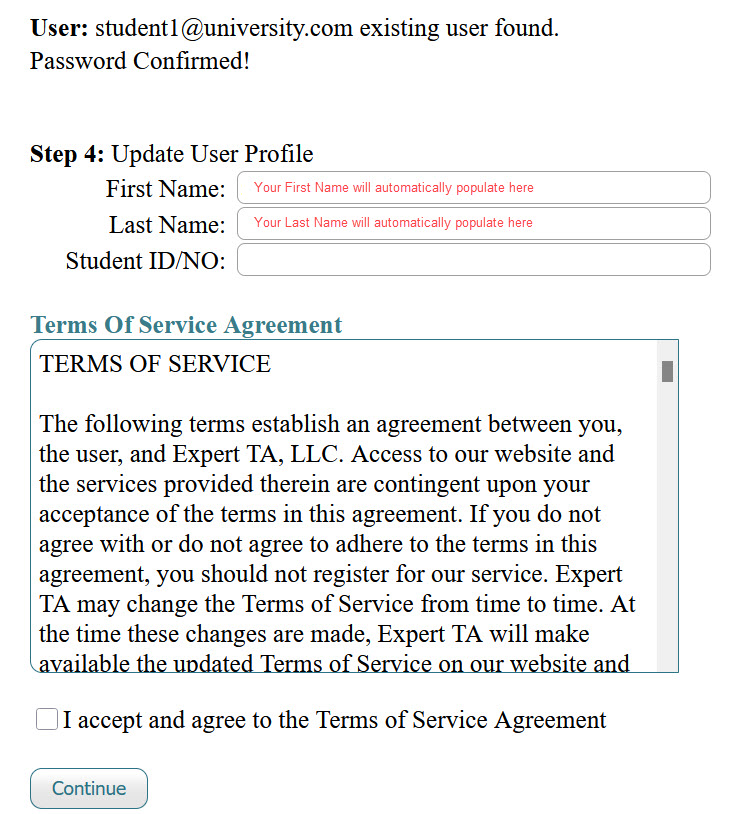
Check your Name and Student ID and make any necessary changes.
Review the Terms of Service.
Click the checkbox to indicate that you accept and agree to the Terms of Service Agreement.
Click Continue to move to the next step.
Step 6: Complete Payment
Enter your payment information on the payment page. For details on payment options, see Payment Options.
Step 7: Log In
Once registration and payment are complete, log in using your email address and new password.
For step-by-step instructions, see Logging In (Registered Students).
Was this article helpful?
That’s Great!
Thank you for your feedback
Sorry! We couldn't be helpful
Thank you for your feedback
Feedback sent
We appreciate your effort and will try to fix the article