The Student Practice Area is designed for physics students and provides additional practice with challenging problems and concepts. This feature is only available for physics courses.
To access the Student Practice Area, open the Class Menu on the Class Management screen and select Student Practice Area.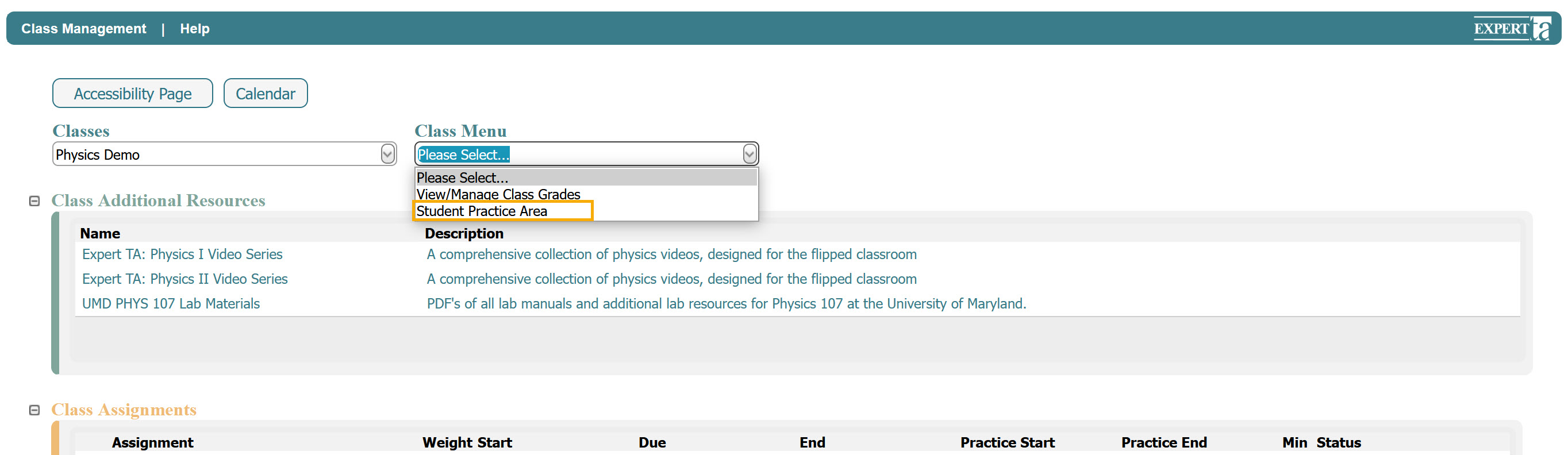
On the Student Practice Area screen, the Expert TA: Introduction to Physics book will be selected by default. If other books are available, you can choose a different one using the Books drop-down menu. 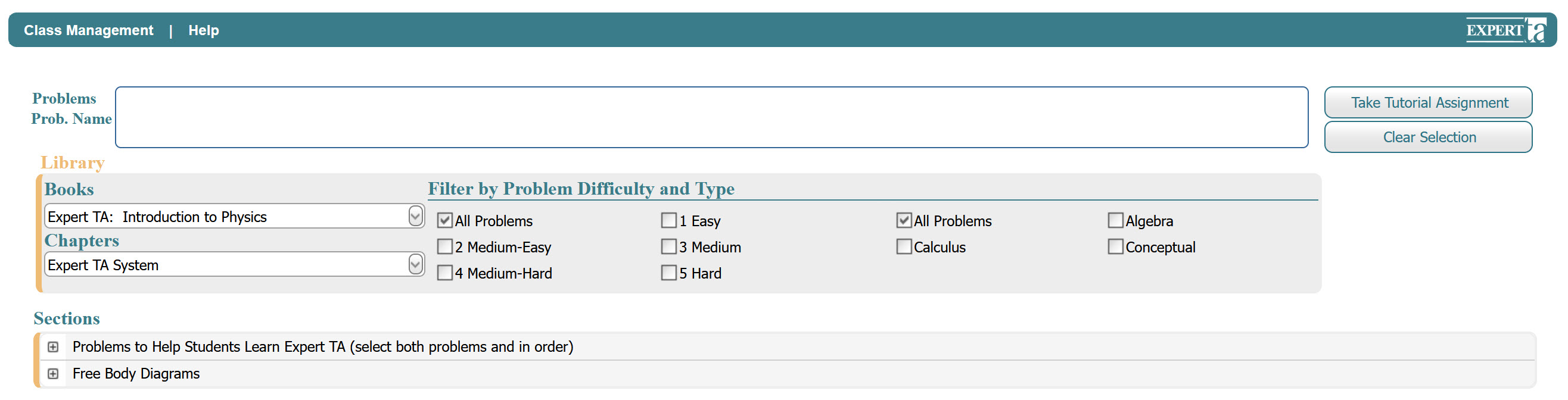
Next, select a chapter using the Chapters drop-down menu. Once a chapter is selected, available problems will be displayed. You can expand sections to view problems and select the ones you want to practice by checking the box next to each problem.
As you select problems, they will appear in the Problems box near the top of the screen. You can remove a problem at any time by clicking the X next to its name. You may select as many problems as you like, including problems from multiple chapters.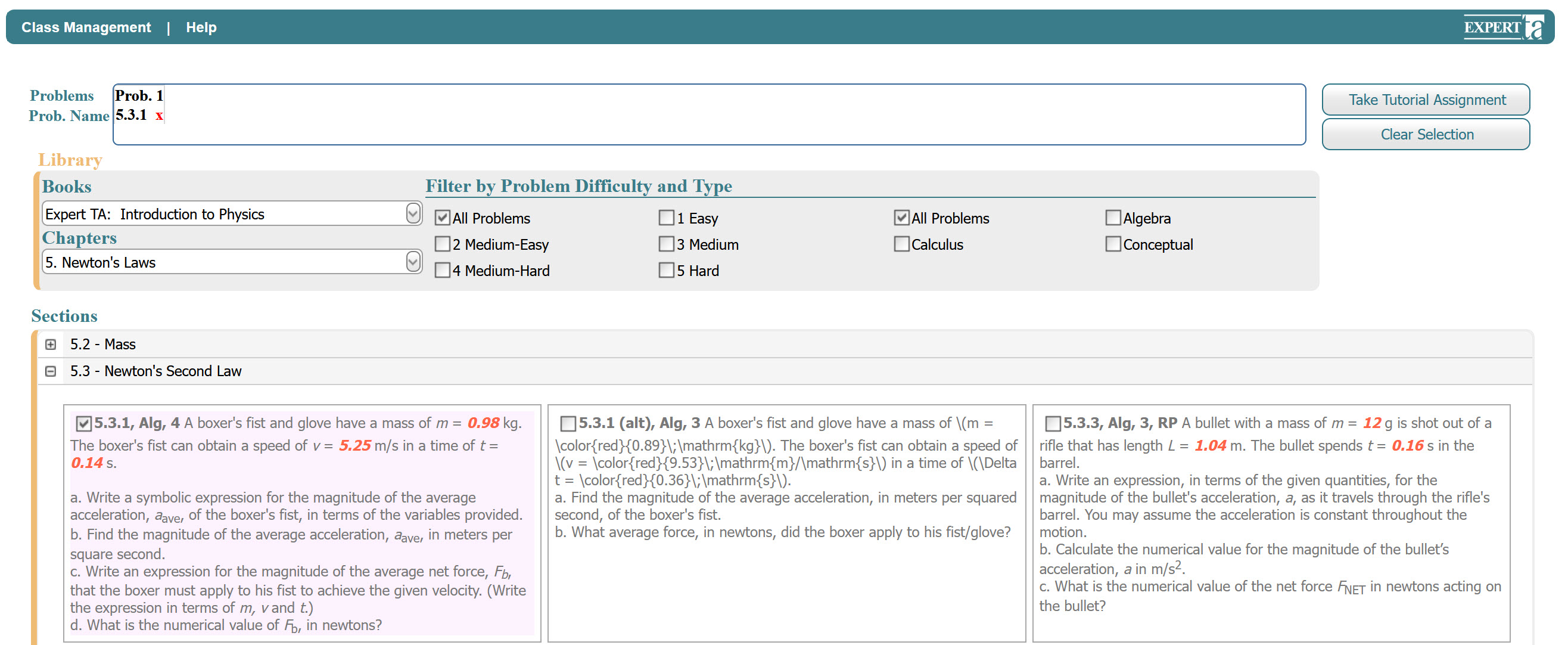
When you are ready to begin, click Take Tutorial Assignment. The practice assignment will function the same as a regular assignment in your class. 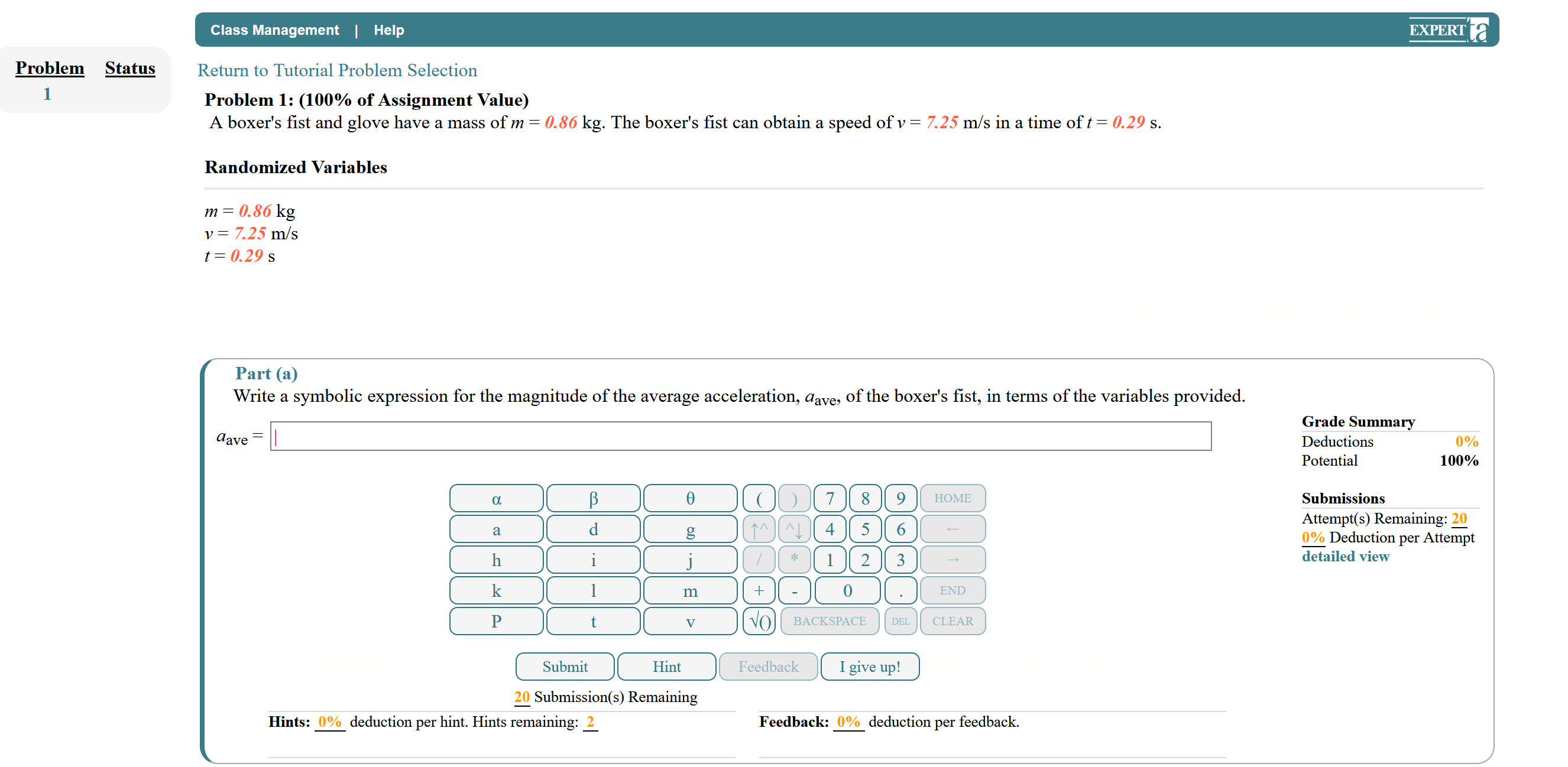
When you are finished, click Return to Tutorial Problem Selection to go back to the Student Practice Area. You will see a warning message indicating that your work will be reset. Click OK to continue or Cancel to return to your assignment.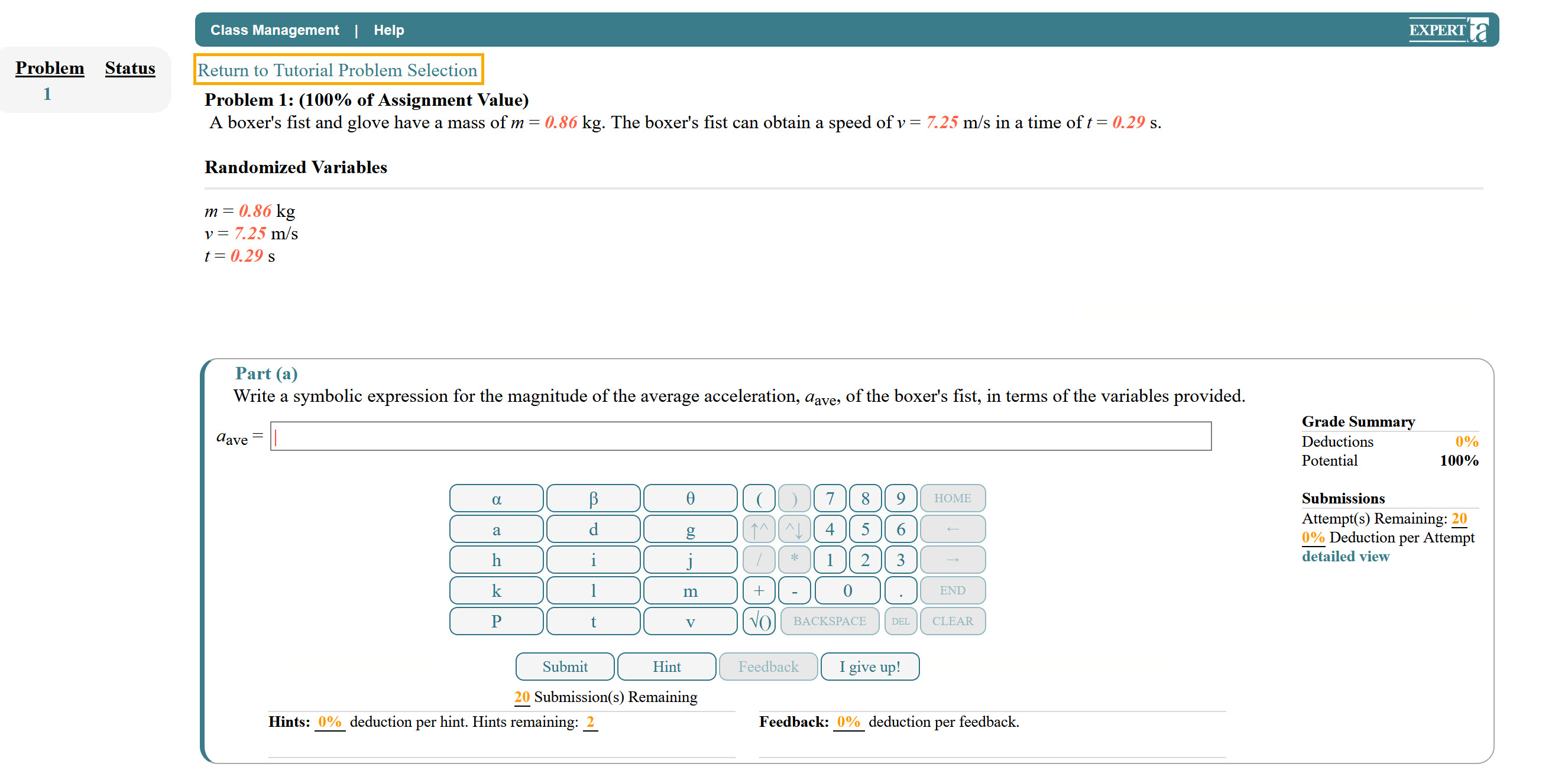
From the selection screen, you can retake the same assignment, modify your selection, or click Clear Selection to start over.
To exit the Student Practice Area, click Class Management in the upper left-hand corner.
Was this article helpful?
That’s Great!
Thank you for your feedback
Sorry! We couldn't be helpful
Thank you for your feedback
Feedback sent
We appreciate your effort and will try to fix the article