The palette helps you enter answers and functions like a calculator. It may change depending on the problem.
Note: The answer field is not a text box and behaves differently from standard typing fields.
Clearing Your Answer
Use the Clear button to remove everything from the answer field.
This is especially useful if your answer contains hidden characters or formatting (such as unused superscripts), which may cause your answer to be marked incorrect.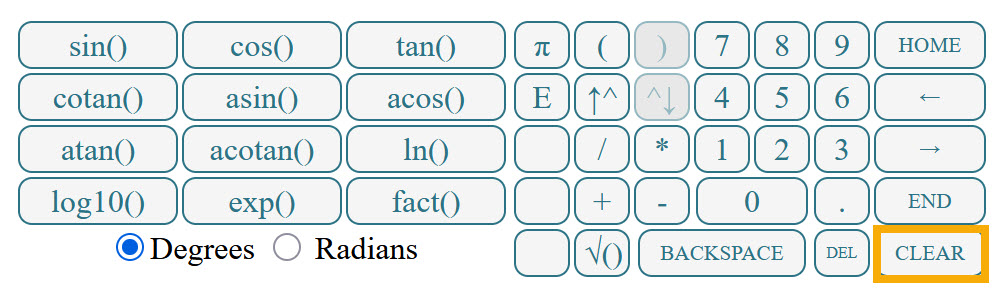
Entering Exponents (Superscript)
Use the superscript ( ^ ) button to enter exponents. When activated, the cursor moves to a raised position.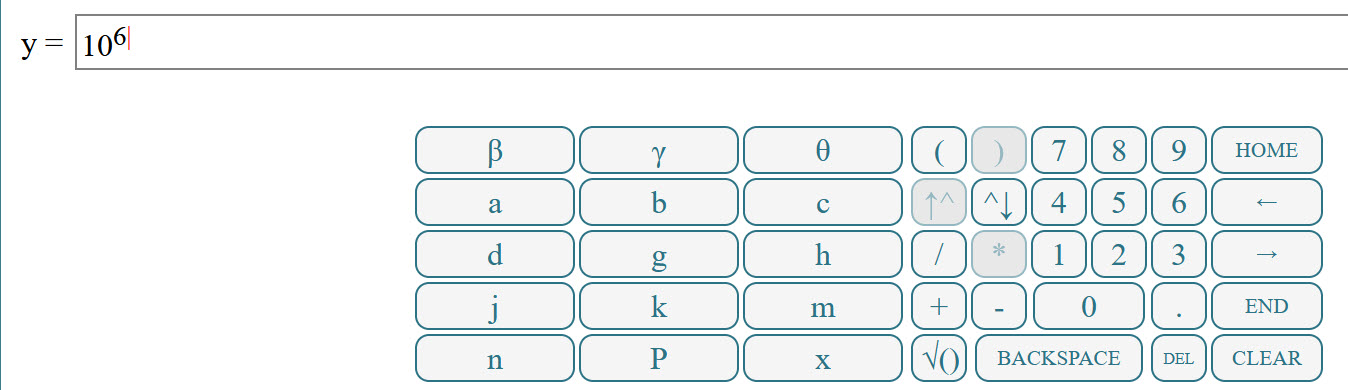
After entering the exponent, you must use the subscript (down arrow) button to return to normal entry.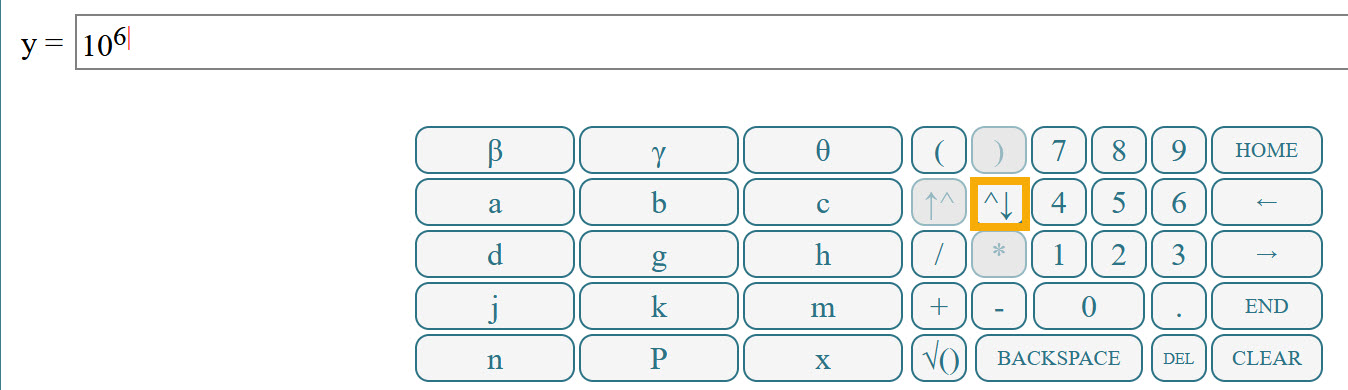
Correct Example: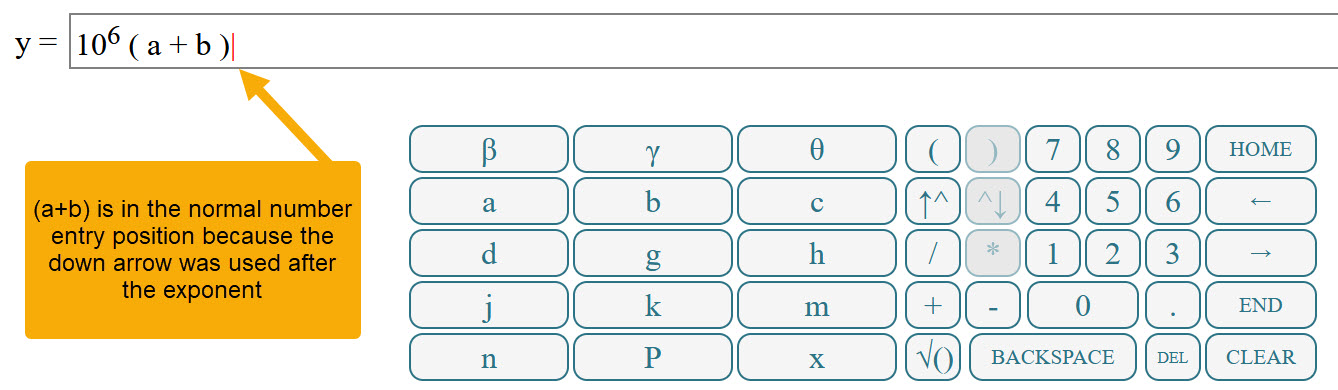
Incorrect Example: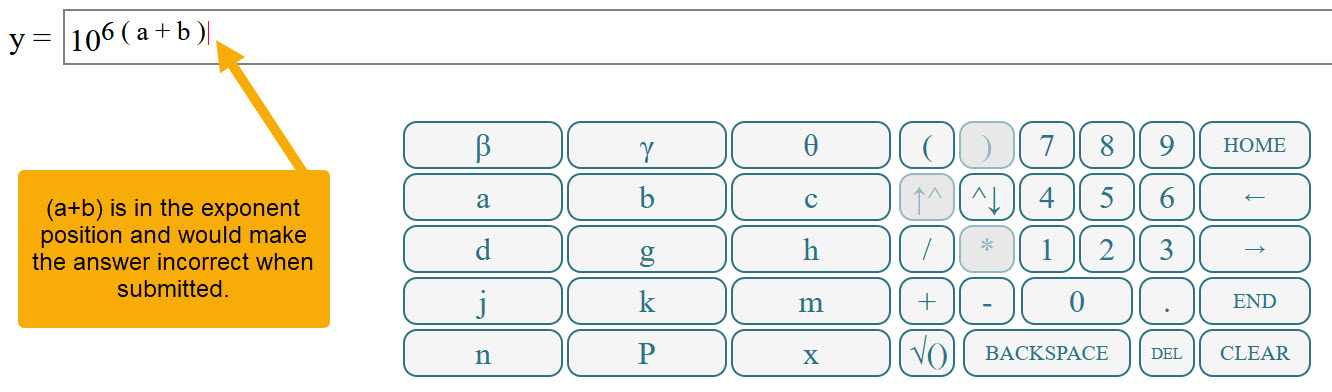
Important: If you do not exit superscript mode, everything you type will remain in the exponent.
Navigating Within Your Answer
Use the arrow keys on your keyboard or the palette to move the cursor within your answer.
Because the answer field is not a text box, clicking may not behave as expected.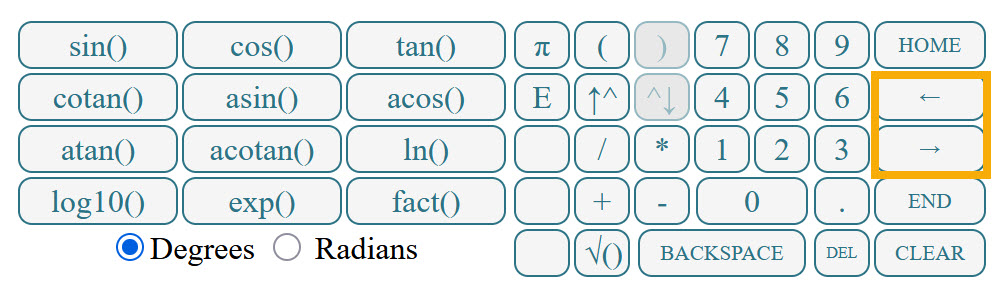
Degrees and Radians
The palette includes a Degrees/Radians setting. The default is Degrees, but some problems require Radians.
This setting does not change the appearance of the palette, but it does change how trigonometric functions are calculated.
For example:
sin(37)in Degrees mode is evaluated as 37 degreessin(37)in Radians mode is evaluated as 37 radians
Because of this, using the wrong setting can result in an incorrect answer, even if your input is otherwise correct.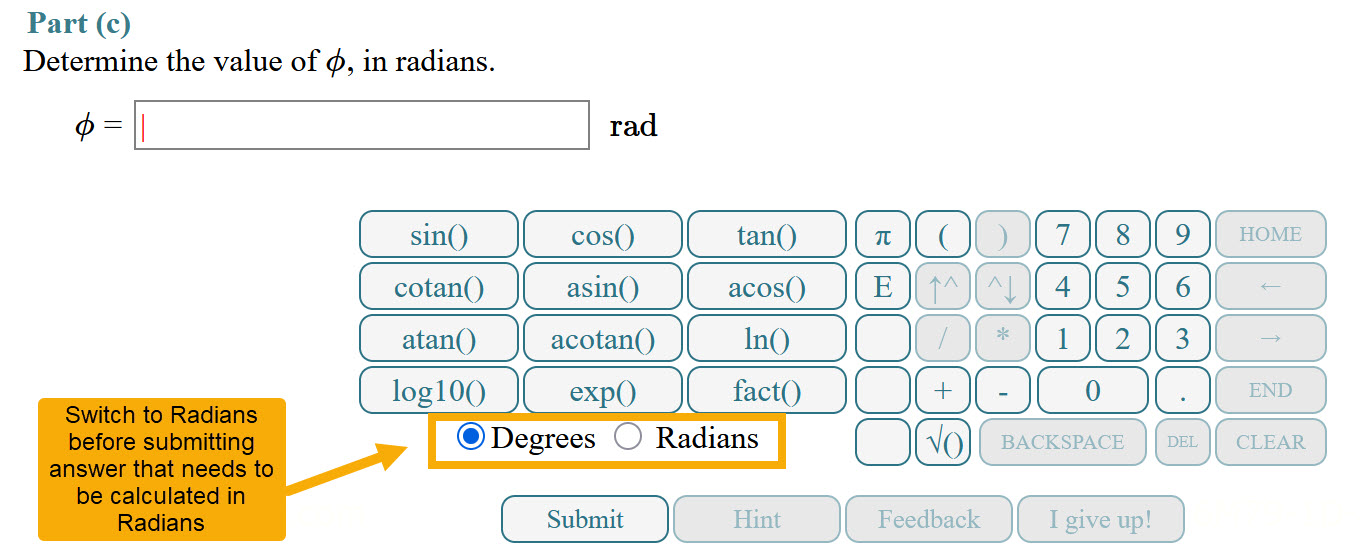
Important: Always check whether the problem expects answers in degrees or radians before submitting.
Troubleshooting
Non-Matching Parenthesis
Make sure all parentheses are closed before submitting your answer.
If they are not, you will see an error message and will need to correct your answer before submitting.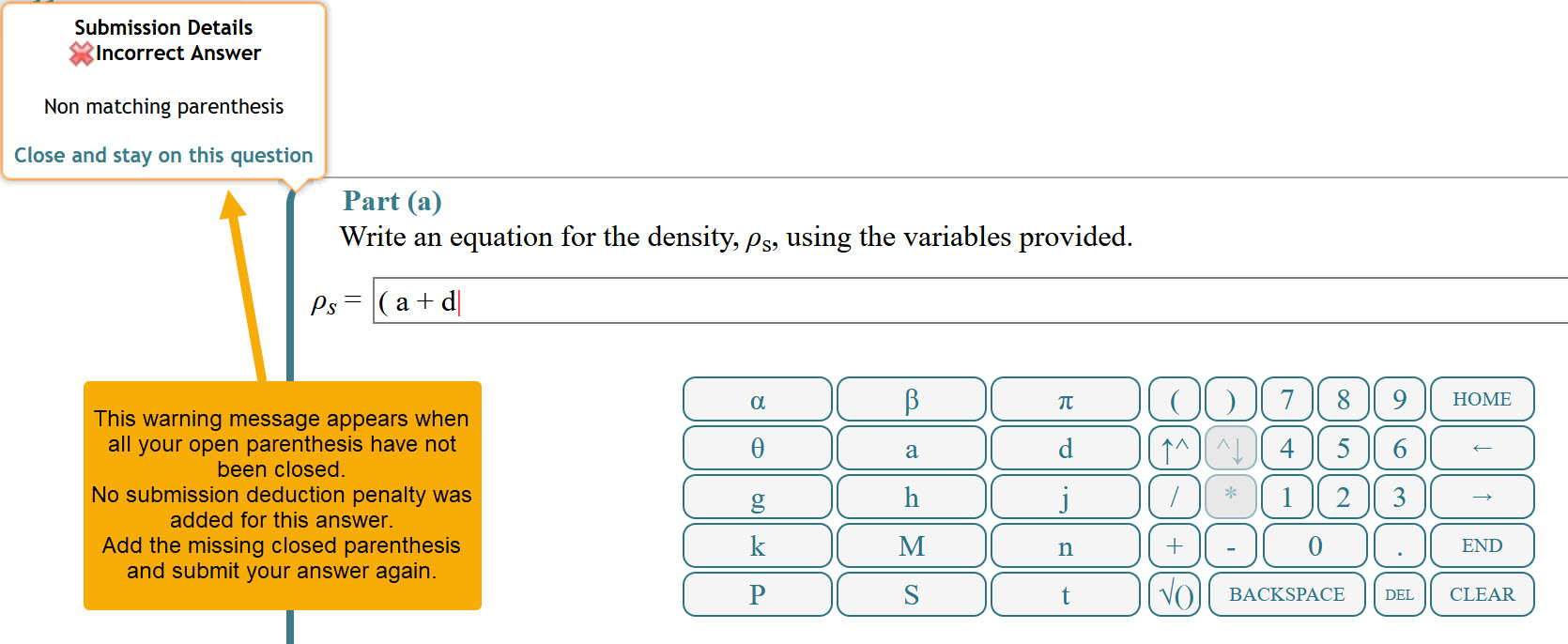
Wrong Number of Arguments to Operator
You may see a “Wrong number of arguments to operator” error when submitting your answer.
This usually happens when there is a hidden or incomplete entry in the answer field, often caused by entering and exiting superscript (exponent) mode without fully clearing it.
Example:
- Enter
a^busing the superscript button - Click the subscript (down arrow) button to exit the exponent
- Use the arrow keys to move the cursor back into the exponent, just to the right of
b - Press Backspace
At this point, a hidden space can remain in the answer field. If you submit the answer now, you will see the “Wrong number of arguments to operator” error.
How to Fix It:
- Click the Clear button on the palette to remove the entire answer
- Re-enter your answer carefully
Note: This error does not count as a submission attempt and does not apply a deduction.
Was this article helpful?
That’s Great!
Thank you for your feedback
Sorry! We couldn't be helpful
Thank you for your feedback
Feedback sent
We appreciate your effort and will try to fix the article