Some assignments may include messages from your instructor. These messages provide important information, reminders, or guidance while you are working.
Messages are set by your instructor, and you may see one or more types depending on the assignment.
Types of Messages
Assignment Message to Class
Appears at the top of the assignment for all students
Typically includes general instructions or important information
Assignment Message to Specific Students
Appears at the top of the assignment for selected students
May include personalized instructions or reminders
Problem-Level Messages
Appear when working on a specific problem
Often include hints, reminders, or guidance related to that problem
If you close or dismiss a message, you can reopen it by clicking the blue circle with the “i”, or by selecting View Messages at the top of the assignment
Dismissing Messages
Some problem-level messages can be dismissed, while others will always appear:
Can Dismiss:
You may have the option to select “Do Not Show this Again” after viewing the message a certain number of times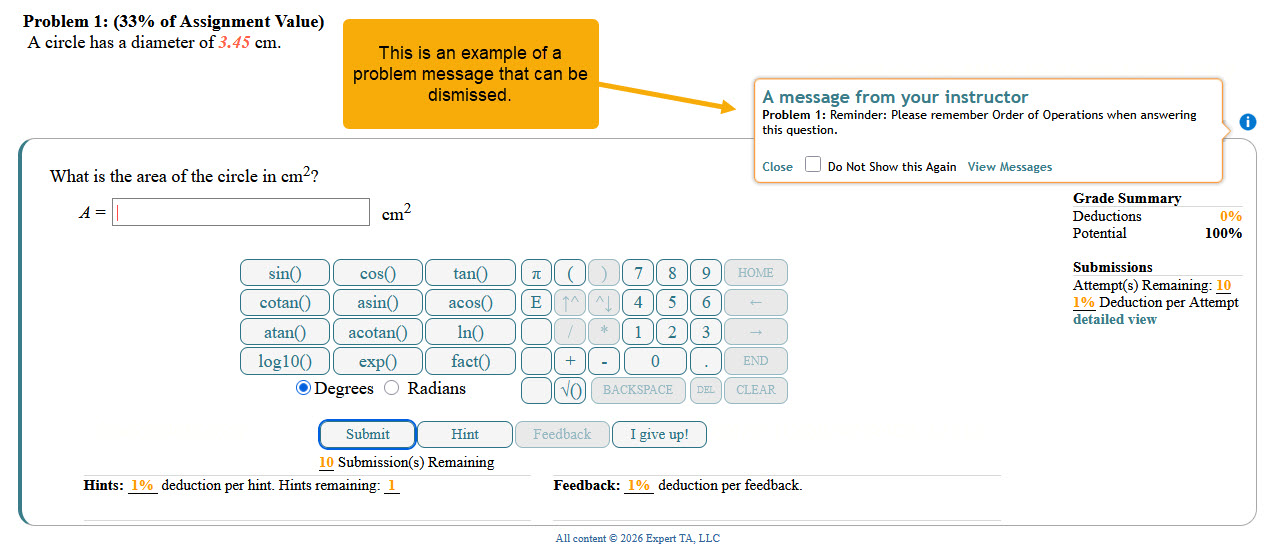
Cannot Dismiss:
The message will continue to appear each time you access the problem, but you can close it temporarily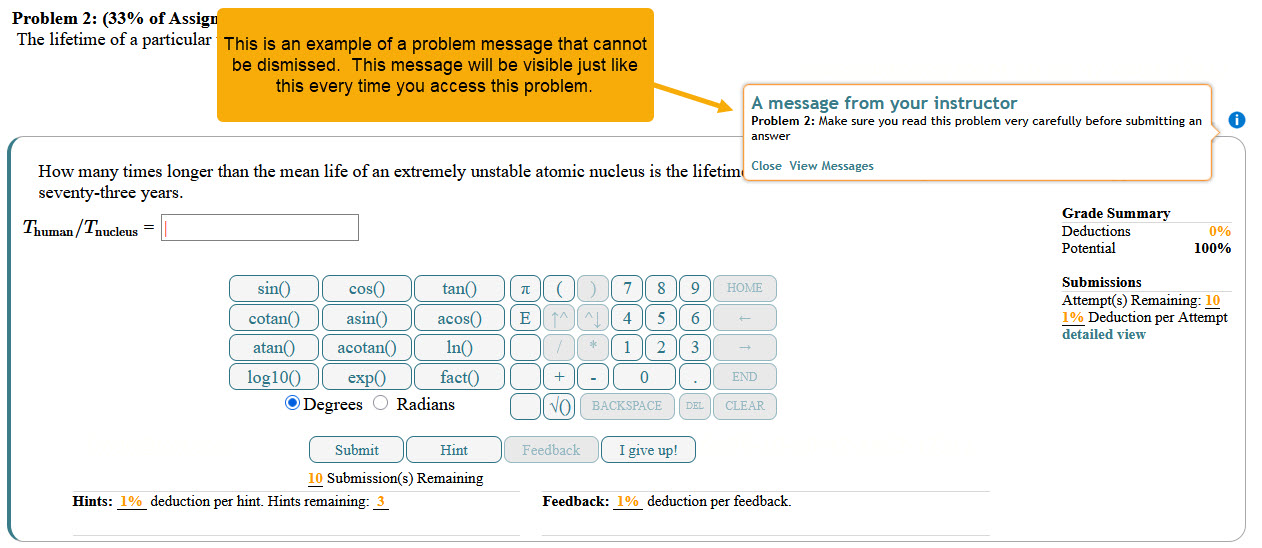
Note: If you close or dismiss a message, you can reopen it by clicking the blue circle with the “i”, or by selecting View Messages at the top of the assignment
Viewing Messages
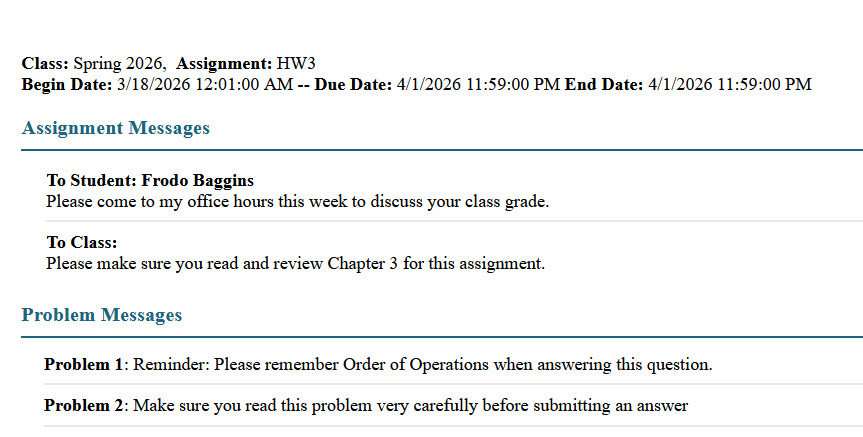
You can click View Messages to open all assignment messages in a new tab. This allows you to easily reference them while working on your assignment. All notifications have a View Messages link, and there is a View Messages link at the top of the assignment that will always be visible.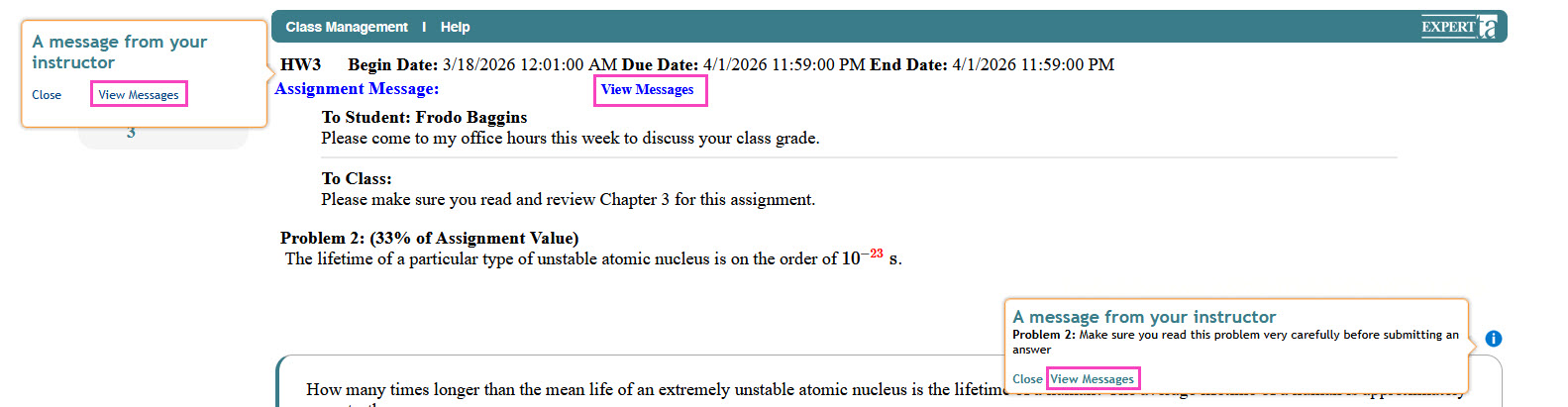
Was this article helpful?
That’s Great!
Thank you for your feedback
Sorry! We couldn't be helpful
Thank you for your feedback
Feedback sent
We appreciate your effort and will try to fix the article